How to convert HEIC to JPG
- Drop your HEIC files into the box above, or click it to choose from your device.
- JPG is already selected for you. Press "Convert to JPG".
- Download each new JPG file, or grab them all at once as a ZIP.
Why convert HEIC to JPG?
HEIC files are best for storing iPhone photos efficiently. JPG is the better choice for photos you want to share, email or upload anywhere. It opens in everything: every phone, browser, OS and photo app, while HEIC opens in apple devices; Windows only with an extra extension.
JPG uses lossy compression, so the converter encodes at high quality settings that look (or sound) identical to the original for everyday use.
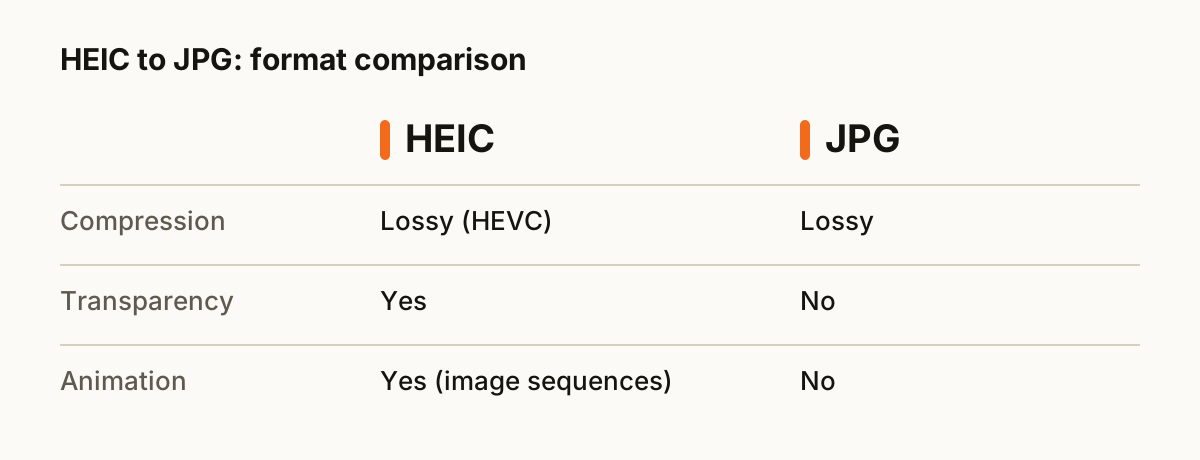
HEIC vs JPG at a glance
| HEIC | JPG | |
|---|---|---|
| Compression | Lossy (HEVC) | Lossy |
| Transparency | Yes | No |
| Animation | Yes (image sequences) | No |
| Opens in | Apple devices; Windows only with an extra extension | Everything: every phone, browser, OS and photo app |
| Best for | storing iPhone photos efficiently | photos you want to share, email or upload anywhere |
What happens to your file
Most browsers cannot open HEIC on their own, so the page loads a small decoder library that unpacks Apple's HEVC-compressed image data inside your browser. It handles single photos and multi-image HEIC files, and each image comes out as a separate file.
Tips for a clean conversion
- Drop a whole folder's worth of HEIC files at once. They convert one after another and you can download everything as a single ZIP.
- Keep your original HEIC files until you have checked the results. Converting back later is rarely lossless.
- JPG is a lossy format. Convert from the best original you have, not from a file that was already compressed.
- Transparent areas turn white, because JPG has no transparency. Pick PNG or WebP if you need to keep it.
About the formats
HEIC: Apple's default iPhone photo format. Great compression, poor support outside Apple devices.
JPG: The most widely supported photo format. Small files thanks to lossy compression.
Questions
- Is it safe to convert HEIC to JPG here?
- Yes. The conversion runs entirely inside your web browser. Your HEIC file is never uploaded to a server, so nobody else can see it.
- Will I lose quality?
- JPG uses lossy compression, so the converter encodes at high quality settings that look (or sound) identical to the original for everyday use.
- Can I convert several HEIC files at once?
- Yes. Drop as many files as you like. Each one is converted in turn, and you can download them one by one or all together as a ZIP.
- Is it free?
- Yes. There is no sign-up, no watermark and no limit on how many files you convert.
- Does it work on a phone?
- Yes. The converter runs in any modern browser, including Safari on iPhone and Chrome on Android, so you can convert HEIC files without installing an app.